
How to do a Digital Clock (or other counter) inside an NVIDIA Omniverse scene? There are UI widgets, but they are painted on the viewport as an overlay. They are not a part of the 3D scene. Unfortunately there is no “3D text” in OpenUSD, so how to do a digital clock in a 3D scene? In this blog I explore a few approaches.
Displaying a digit in 3D
One funky way to display a digit in 3D is using a combination lock style wheel. You can rotate the wheel to make different values visible. (360 degrees means you rotate the wheel by multiples of 36 to get the digits 0 to 9 to display.)

The problem with this approach however is you need space for the hidden part of the wheel.
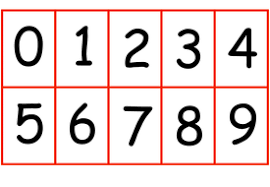
Another common approach is to use a tiled texture then animate the offsets into the texture to pick the correct digit. The width and height of each digit is the same, you only need to adjust the base offset. For example, UsdPreviewSurface supports a Transform2D node which can be used to adjust the offset to extract from a larger texture. For example, for the following image you might set the X-scale to 0.2 (1/5th) and the Y-scale to 0.5 (1/2), then the translation offset would be multiples of 0.2 along the X-axis and 0.5 along the Y-axis.
Alternatively, instead of modifying a material definition by adjusting offsets, separate materials can be created and the material on the mesh replaced with the digit to be displayed.
In this blog, I have gone with another route. I create separate meshes per digit. While I only use planes in this blog post, it allows each digit to be replaced with a full 3D mesh. So each digit has a dedicated mesh and material, then all digits except one are made invisible.

Variant Sets
One approach to control visibility is to have a Python script or Action Graph control digit visibility, but I decided to go with variant sets. Using a variant set provides an level of abstraction. I can change how I implement displaying digits at any time without the code working out the number to display being effected. The variant set provides a simple interface to control what is displayed – pick the variant by name.
I initially tried using variant names of 0, 1, 2 and so on, but this failed. The variant names have to be valid tokens (they cannot start with a number). So instead I called them digit_0, digit_1, digit_2 and so on.
Omniverse has a tool to help creating a variant set. The process I followed was to
- Select the /Digits Xform prim (I renamed /World to /Digits in my USD file).
- Create a new variant set called “digit_set”.
- I then added variants “digit_0” to “digit_9” (and “blank”).
- I made all the digits invisible by default.
- For each variant (“digit_0” to “digit_9”), I added the corresponding child prim path (/Digits/Digit_0, /Digits/Digit_1, /Digits/Digit_2, and so on) and added an property override to set Visibility to “inherited” instead of invisible.

Using the variant set viewer then allowed me to select different variants via a drop down menu, causing the corresponding variant to be displayed.
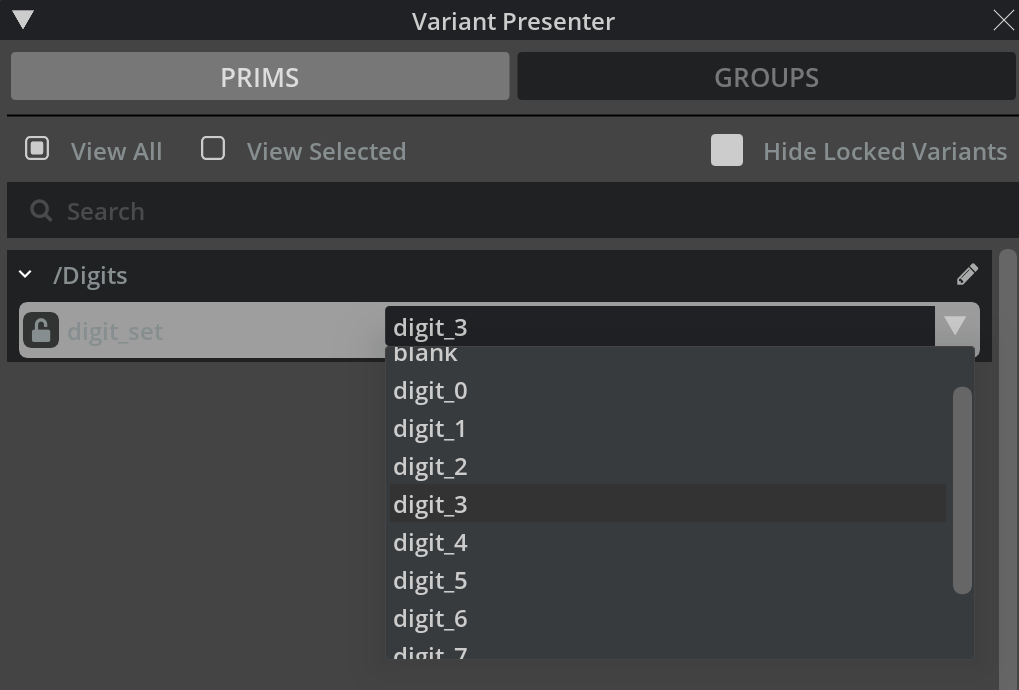
… but it didn’t work.
I do not understand why OpenUSD made the decision, but if a property is specified locally, it will win over the variant set. (Local properties have higher priority than variant set values.) Visibility of a prim can be set to “invisible” or “inherited” (there is no “visible” value — a prim is visible if it and all of its ancestors are all marked as “inherited”; if a prim or any ancestor is marked as “invisible”, then the prim is not shown). So I cannot mark the parent prim of all the digits (/Digits) “invisible” as then none of the child digits will ever be visible, and I cannot set the default for individual prims to be “invisible” as the local value will block the variant value from working.
The solution is for each variant to set the value of the “visibility” property of every digit to “invisible”, except the one to be displayed which is set to “inherited”. Here is the definition of variant “digit_3”. “/Digits/Digit_3” is set to visible (“inherited”); all the rest are listed and set to invisible.

Hint: When you define the variant, add the relevant prims, and override the properties for that prim, then make sure the circle next to the property value contains a “V” (for “variant”) like above and not “L” (for “local”) like below.

Clicking on the “L” removes the local definition of the property, which is convenient.
The general rule is if you want to override a property in a variant, remove the local definition and specify the value of the property in every variant of the variant set.
Action Graph for a Single Digit
Now that changing the variant selection displays the appropriate digit, the next step is to get the current time (HH:MM:SS) and have an Action Graph display the correct digits. I created a USD file to hold one digit then started a new stage that referenced the digit file 6 times (one per digit). I then moved the digits next to each other.

Next, I put together an action graph that reads the current time since Omniverse started (real clock time would be better, but an Omnigraph Node does not exist for that) and sets the variant name of each digit to to “digit_” concatenated with the digit value.
Here is the overall graph with 6 rows, one per digit in HH:MM:SS.

Zooming in, I start with a “Read Time” node, leveraging the “Time Since Start (Seconds)” output to feed the clock display. This is the duration in seconds since Omniverse started.

The other node on the left is a tick node, which I use to trigger execution of the set variant nodes on the far right. Without this, the variant sets will never be updated.
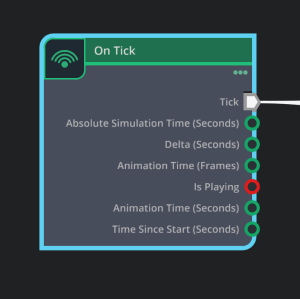
To reduce overheads I increased the update period so it only refreshes the variant sets a couple of times per second.

To display the units column of seconds, I use the input time in seconds modulo 10 to end up with a number from 0 to 9, convert that to a string, prepend the text “digit_”, convert the final string to a “token”, then set the variant for variant set “digits_set” of the /World/s2 prim to that value.
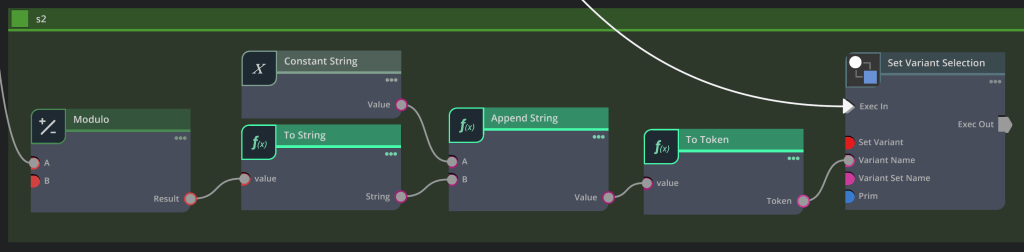
The tens column of seconds adds some extra nodes at the start to divide by 10, changes the modulo to 6, and modify the /World/s1 prim. Otherwise the process is the same. Because I use integers everywhere, there is no need to perform floor functions to remove fractions after division.

Similarly, the units of minutes divides by 60 and modulos by 10; the tens of minutes divides by 600 and modulos by 6; units of hours divides by 3600 and modulos by 10; and the tens of hours divides by 36000 and modulos by 6.
Currently there is not a time-of-day Omnigraph node. A Script Node could be used to inject python script into a node to output the time of the current day. To do this you will need to enable the omni.graph.scriptnode extension.
Conclusions
This blog post showed one way to update digits in an Omniverse scene. This was triggered by a question about how to update meters in a scene for digital twins on Discord. I went with a separate prim per digit allowing the digits to be replaced by full 3D models if wanted later. I also showed using a variant set to control which digit to display. Hopefully it is clear how to display a counter for other values. For example, add an Action Graph integer input variable and feed that in instead of the time-in-seconds value.
An alternative approach would be to write a behavior script in Python. The reason I did not go this route is to share a project requires the Python code to also be shared. Python code is not stored inside the stage. However sometimes I find the overhead of using Omnigraph nodes overkill for what could be a few lines of Python in a behavior script (with the full power of Python expressions available).
And of course, 10 minutes after finishing all of the above I came across another project: https://github.com/ft-lab/Omniverse_OmniGraph_ClockSample. Sigh. For example, it supports a digital clock via an LCD display. It is based on controlling seven segment displays to display digits. See https://github.com/ft-lab/Omniverse_OmniGraph_ClockSample/blob/main/extension/ft_lab.OmniGraph.GetDateTime/ft_lab/OmniGraph/GetDateTime/nodes/OutputToLCD.py for sample code.
Want to try the above yourself? I uploaded USDA versions of the digit.usd file (one digit) and digits-stage.usd file if you want to look more directly. https://gist.github.com/alankent/3f2ee170a97cf46aaf74bde8839920a1. You will need to rename the .usda extensions to .usd after downloading the files (digits-stage.usda references “digit.usd”, not “digit.usda”).
 Extra Ordinary, the Series