
SyncTwin.ai has a cool feature where you can take a PowerPoint visual and an Excel spreadsheet to assemble a factory scene in OpenUSD. Very nice! I was wondering how to create something similar using Adobe Illustrator. I thought Illustrator might make it easier to do larger floor plans without worrying about the size of a slide.
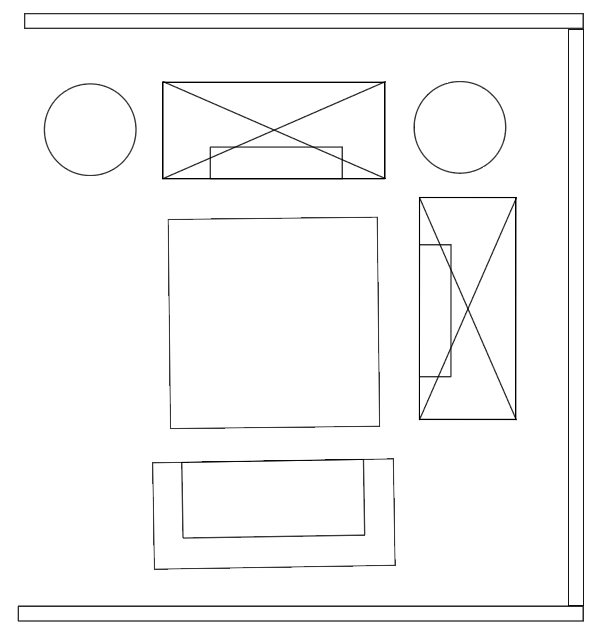
In Illustrator you can build up a library of graphics, representing different furniture items to put in a location. For this to work well, you have to get the scale right which takes a bit of fiddling around.
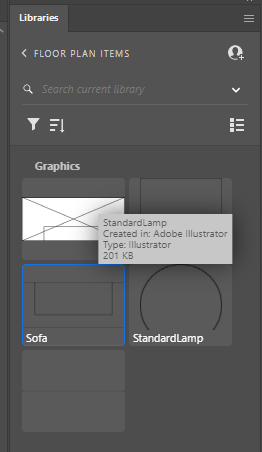
Once I had some different symbols created in my library, I could drag them onto a page then position and rotate them. When you drag the graphics into an Illustrator file, it keeps track of the positions and rotations.

To keep things simple, I use the names of the graphics in the library as file names for models to load. That is, I created a .usd file for each item in the library. For example, for Sofa in the Illustrator library I created a “Sofa.usd” file in the same directory as my Illustrator file.

I found it easiest in the Sofa.usd file to nest the reference to the real model inside an Xform. It allowed me to tweak the scaling for example.
#usda 1.0
(
    defaultPrim = "World"
    endTimeCode = 100
    metersPerUnit = 0.01
    startTimeCode = 0
    timeCodesPerSecond = 60
    upAxis = "Y"
)

def Xform "World"
{
    def "Sofa" (
        prepend payload = @http://omniverse-content-production.s3-us-west-2.amazonaws.com/Assets/ArchVis/Commercial/Seating/Jobba/Jobba_Sofa.usd@
    )
    {
        float3 xformOp:rotateXYZ = (-90, 0, 0)
        float3 xformOp:scale = (1.5, 1.5, 1.5)
        double3 xformOp:translate = (0, 0, 0)
        uniform token[] xformOpOrder = ["xformOp:translate", "xformOp:rotateXYZ", "xformOp:scale"]
    }
}
But how to get the position and rotation information out of the Illustrator file? I first tried exporting as SVG, but it proved to be difficult. SVG baked the position and rotation information – I could not work out the rotation of items. (Positions I could work out by determining the bounding box of the item, then taking the center.)
So I tried another approach of using ExtendScript (a form of JavaScript that you run inside Illustrator). It runs around the current document looking for layers of type “PlacedItem” (the object type created when you drag a graphic from the library into the document).
With this in hand, I put together an ExtendScript script to create a USDA file for the document. You can find it here: https://gist.github.com/alankent/828eff3919146af11ef470bc742ce7be
I put this script into C:\Program Files\Adobe\Adobe Illustrator 2024\Presets\en_US\Scripts\FloorPlaner.jsx, restarted Illustrator, then “FloorPlanner” appeared under my File/Scripts menu item.
The end result is you can draw a floor plan in Illustrator using drag and drop from a library of graphics, then generate a 3D rendition of a location. You can add new furniture items by adding them as graphics to the Illustrator library, then creating a <GraphicName>.usd file to hold the USD for the furniture.
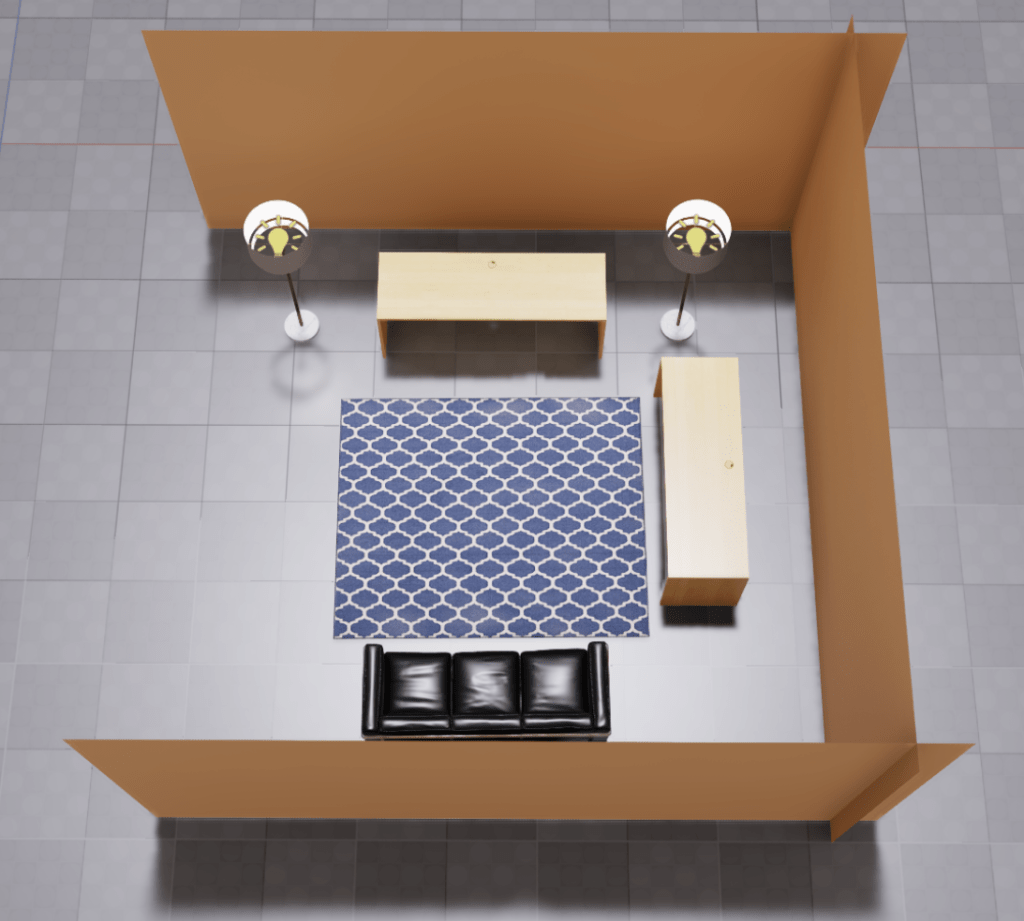
Note that walls do not automatically resize to match the diagram, but I think this may be easy to add as ExtendScript has access to the bounding box of the object. Something for future consideration.
To try different positions, you just drag things around in the Illustrator file and rerun the script to update the USDA file matching the Illustrator file.

Then reopen in Omniverse and position the camera as desired.

 Extra Ordinary, the Series